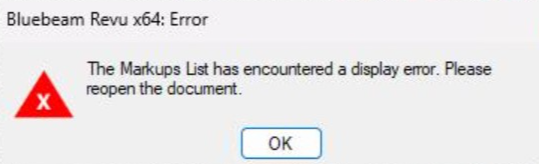
Beginning with Bluebeam Revu version 21.4, users have been reporting the following error when opening some files via BFX:
What's Causing It
We worked with Bluebeam Technical Support to find the cause. The error is triggered by untitled viewports that get embedded in PDFs when they are exported from design software (commonly AutoCAD).
Prior to version 21.4, Bluebeam Revu either ignored these untitled viewports or failed gracefully. Beginning with version 21.4, Revu throws the display error shown above.
This is a known issue with Bluebeam Revu, and Bluebeam has been notified. As of this writing, they have not confirmed a fix or timeline for resolution.
The Solution:
You have three options for working around this issue. Choose the one that works best for your situation.
Option 1: Dismiss the Error (Recommended for Most Users)
The error is a display error only. It does not prevent you from working with the file or its markups. In most cases, you can click through the error and keep working. The markups will load and the document will function correctly.
This is the fastest workaround and does not require any changes to your file or your installation of Bluebeam.
Option 2: Ask the Designer to Resubmit the File
If the error is disruptive or if markups are not loading correctly, you can request that the original designer resubmit the PDF with the untitled viewports removed prior to export.
The designer should:
- Open the original drawing in their design software (e.g., AutoCAD).
- Remove or rename any untitled viewports before exporting to PDF.
- Re-export and resubmit the PDF.
NOTE: Once a PDF is uploaded, untitled viewports cannot be removed remotely via BFX. The cleanup must happen at the source before the file is submitted.
Option 3: Roll Back to Bluebeam Revu 21.3
If neither of the options above works for your situation, you can roll back to version 21.3, which does not exhibit this issue. Follow the steps below.
IMPORTANT: The following procedure is only intended for users of Bluebeam Revu who are using version 21.4 or above
Step 1. - Verify your Version of Bluebeam Revu
- Open Revu if it is not open already
- Select Revu in the top left of the screen
- Select About to view your Bluebeam Revu Version.
- If your version of Bluebeam Revu is less than 21.4 do not continue
Step 2. - Backup Your Preferences
Before following the procedure below to reset Revu, please save your Tool Sets and Profiles.
- Open Revu if it is not open already
- Press Ctrl+K to open Preferences
- In the Preferences window click on Admin in the left column
- Under the Options tab, click on the Backup button to backup your settings
- When prompted, choose a location to save the zip folder containing your backed up settings
- Click Save
Step 3. - Uninstall Bluebeam Revu
- In the Windows search bar, type "remove" and select "Add or Remove Programs".
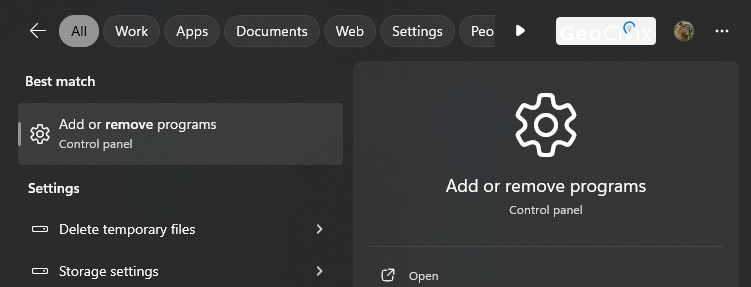
- Search for Bluebeam Revu x64 21 in the list and click the kebab menu on the right side of the screen
(the three dots ... ) - Select Uninstall

- Select Uninstall again to confirm
- Follow the prompts to completely uninstall Bluebeam Revu
Step 4. - Install Bluebeam Revu 21.3
- Download Bluebeam Revu version 21.3 from the following URL:
https://downloads.bluebeam.com/software/downloads/21.3.0/BbRevu21.3.0.exe - Save the file to your computer
- Once downloaded, double click the file to install Bluebeam Revu 21.3
- Follow the prompts to install Bluebeam Revu 21.3
Step 5. - Restore your Preferences
- Open Revu if it is not open already
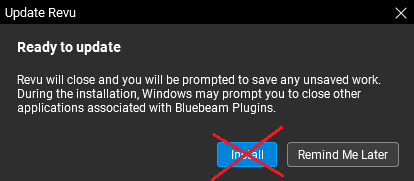
- DO NOT install the update:
- Press Ctrl+K to open Preferences
- In the Preferences window click on Admin in the left column
- Under the Options tab, click on the Restore button to restore your settings
- Click OK to continue.
- When prompted, select the zip folder containing your backed up settings
- Click Save
- Press Alt+X to restore your toolchest
Preventing Auto-Updates
Some users have reported that Bluebeam will auto-update back to 21.4 or later. After rolling back, you may need to disable automatic updates in your Bluebeam preferences or with help from your IT administrator to prevent the update from reinstalling.
Was this article helpful?
That’s Great!
Thank you for your feedback
Sorry! We couldn't be helpful
Thank you for your feedback
Feedback sent
We appreciate your effort and will try to fix the article